
 3 MIN READ
 UPDATED OCT 31, 2026
📘 For employees on Toku. Last updated October 31, 2026.
View, download, and securely upload your employment documents - such as agreements, salary letters, and tax forms - from the Documents page.
Before you start
- The Documents page is in the left-hand menu after you log in.
- Documents you upload are visible to Toku administrators. Your employer's administrators can see that each one is on file (its name and upload date) and can open it, except an Identification Document, which they can't open.
- There's no restriction on file type - PDFs, images (PNG, JPG), Word documents, and other common formats are all accepted, up to 10MB per file and 10 files per upload.
View and download your documents
- Log in at app.toku.com.
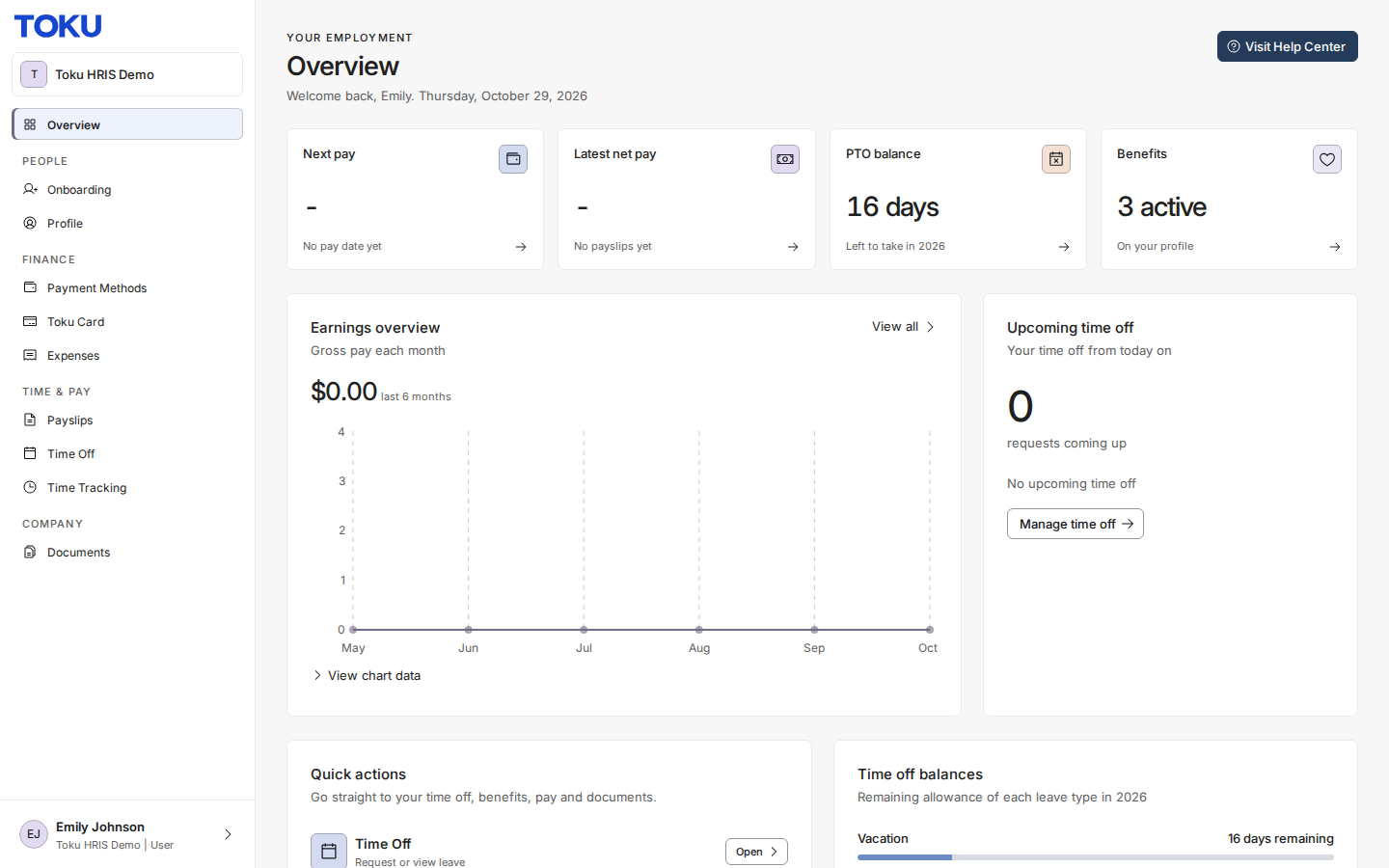
- Select Documents in the left-hand menu. Category cards at the top and category tabs above the table show your document counts, and the table lists each document with its category, status, date, and source.
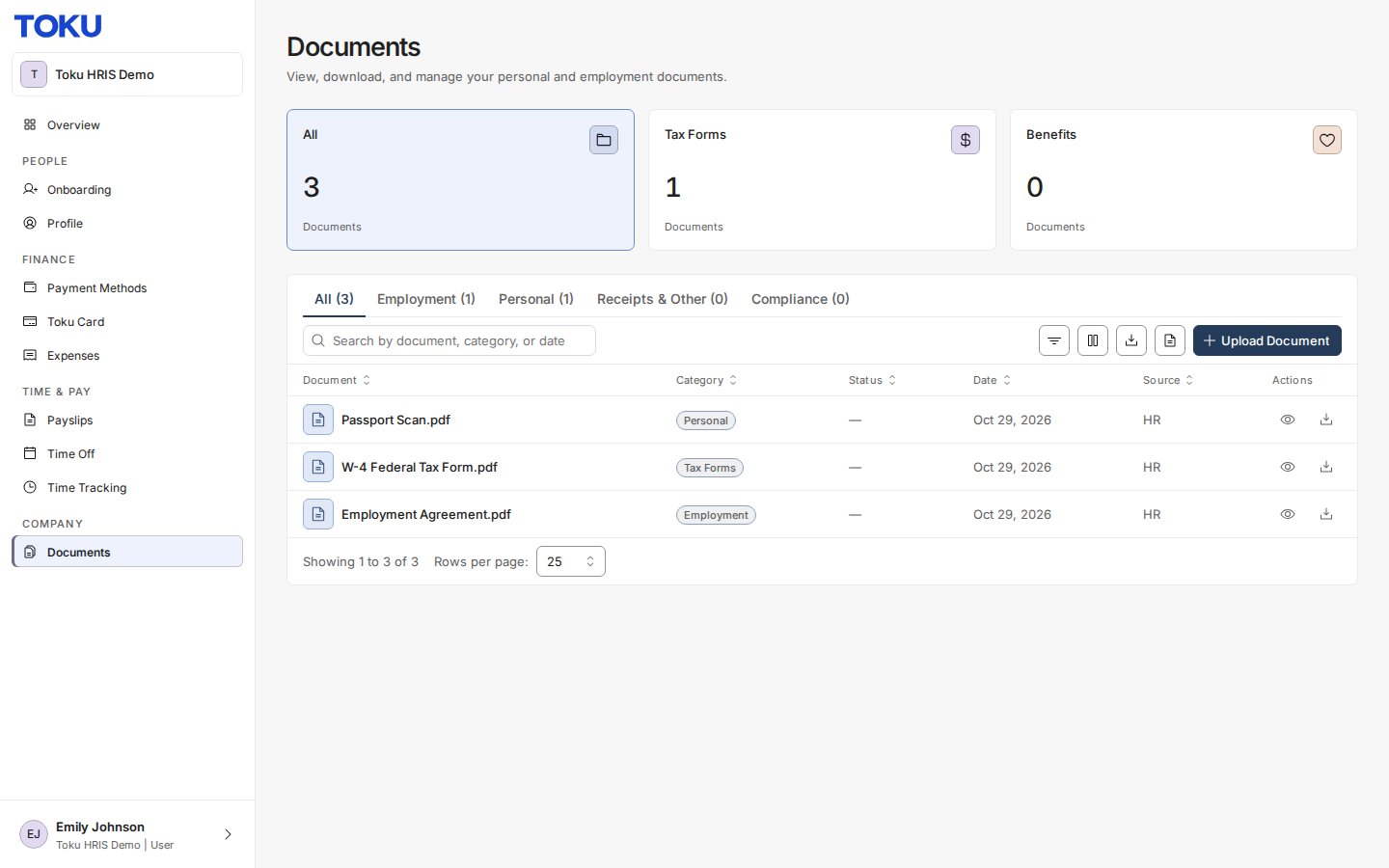
- Use the icons in the Actions column to preview or download a document.
Get your fully signed contract
When you sign your contract in DocuSign, Toku waits for the other side to sign too. As soon as they countersign, Toku saves the fully signed copy to your Documents page and sends you an email saying it's ready, with a View Documents button.
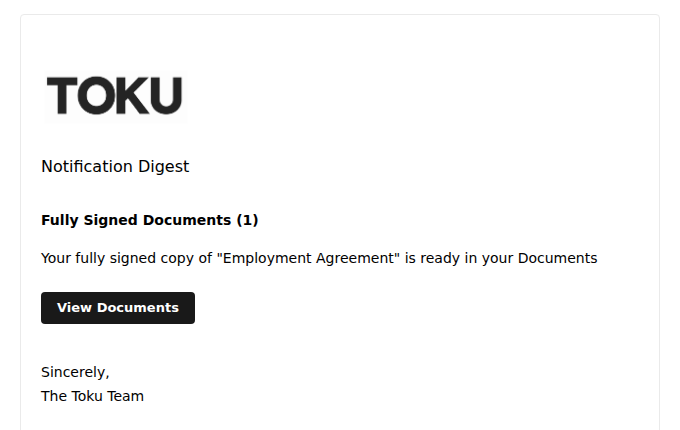
- You don't need to upload anything or ask for the copy. It appears in your documents list on its own.
- If you turned off notification emails, you won't get the email, but the signed copy is still saved to your Documents page.
Upload a document
- On the Documents page, select Upload Document at the right of the toolbar, above the table.
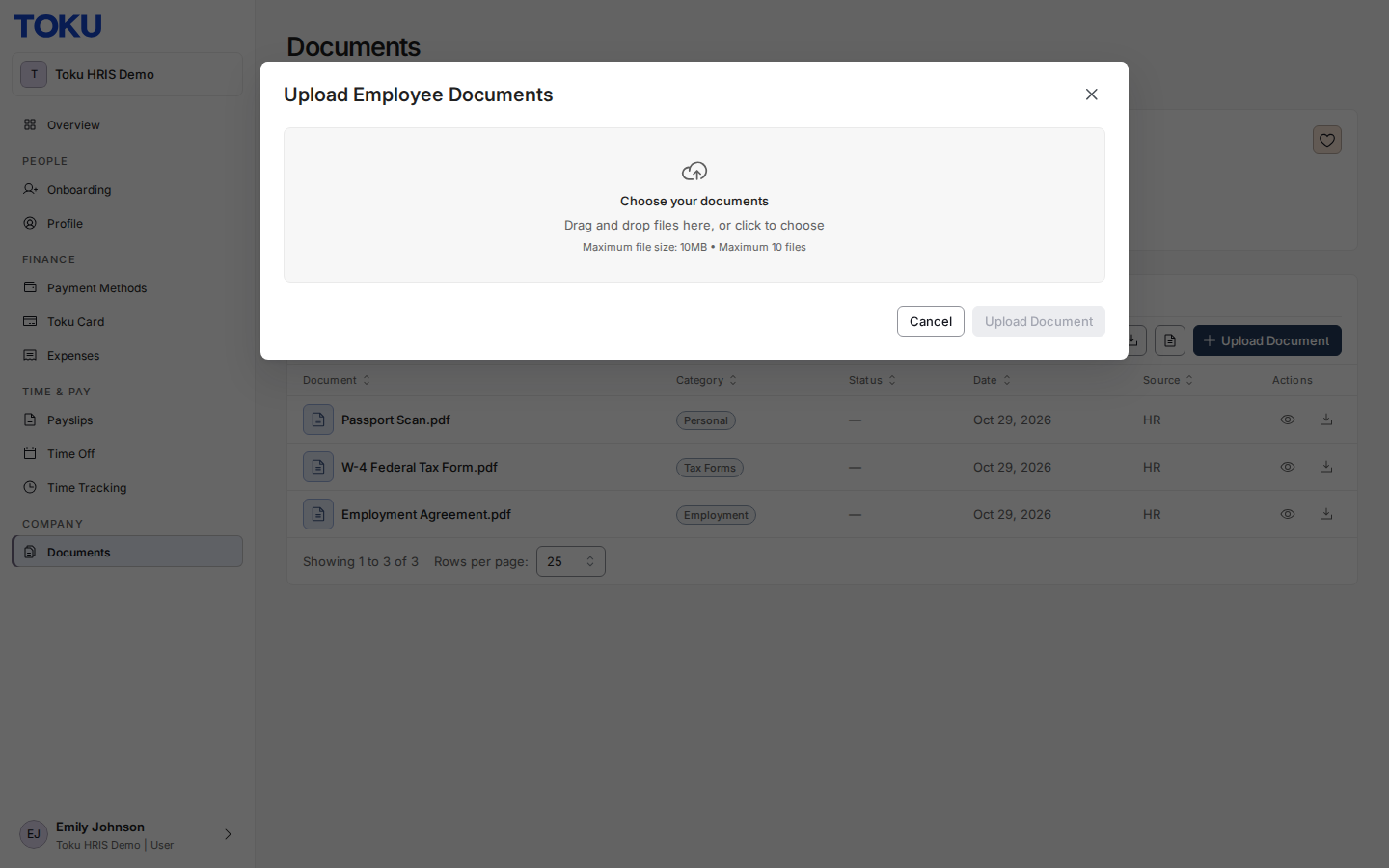
- Choose the file from your device, pick a Category, and select Upload Document. Once uploaded, it appears in your documents list.
Good to know
- Documents you may find here include employment agreements, salary adjustment letters, tax documents, benefits documentation, company policies, and amendment letters.
- Use the search bar, Filters, and Columns options to find documents quickly, or Export CSV to download a summary of the list.
- Missing a document you expected, like an agreement or tax form? Reach out to your Toku contact or submit a support request.
Still stuck?
You can email [email protected] to reach our support team. Please include your email address, organization name, and a description of what happened. Screenshots and videos are always welcome to speed up the troubleshooting process. Feel free to reach out any time for further assistance.