
 6 MIN READ
 UPDATED OCT 30, 2026
⚠️ Contractor invoice and payment deadlines: late action means late payment
- Contractors: submit invoices by the 19th of each month. A saved draft is not a submitted invoice.
- Admins: approve invoices by the 21st of each month. Submission alone does not authorize payment.
- Funding: Toku must receive cleared funds 4 - 5 business days before payout. Initiating a transfer or sending proof of payment does not meet the deadline.
- Standard monthly payout: the last day of the month, provided submission, approval, and funding deadlines are met. Late submission, approval, or funding will delay payment. Every day of delay pushes payment back by at least one day. A missed payment cycle can cause a longer delay; the invoice due date is not a guarantee of payment.
Automation does not remove these deadlines. Earlier published holiday deadlines take precedence; see Toku: 2026 End-of-Year Payroll & Payment Guide.
📘 For contractors on Toku. Last updated October 30, 2026.
Request reimbursement for a work expense by submitting an invoice with your receipt attached.
Before you start
- Sign in to Toku at app.toku.com - there are no product tabs to choose any more.
- You have added a payment method under Payment Methods in the left menu - Toku requires this before you can submit. If that page shows a Wallets & Banks tab, you can be paid by bank transfer or crypto wallet; if it shows only Wallets, add an active wallet, because bank transfer is not available to you.
- You have a copy of your receipt on your device. Toku accepts PDFs, images (PNG, JPG, or WebP), spreadsheets (XLSX, XLS, or CSV), and Word documents, up to 10 MB per file.
Submit a reimbursement invoice
- Sign in and open Invoices in the left menu. You'll see the Invoices page with the blue New invoice button at the top-right.
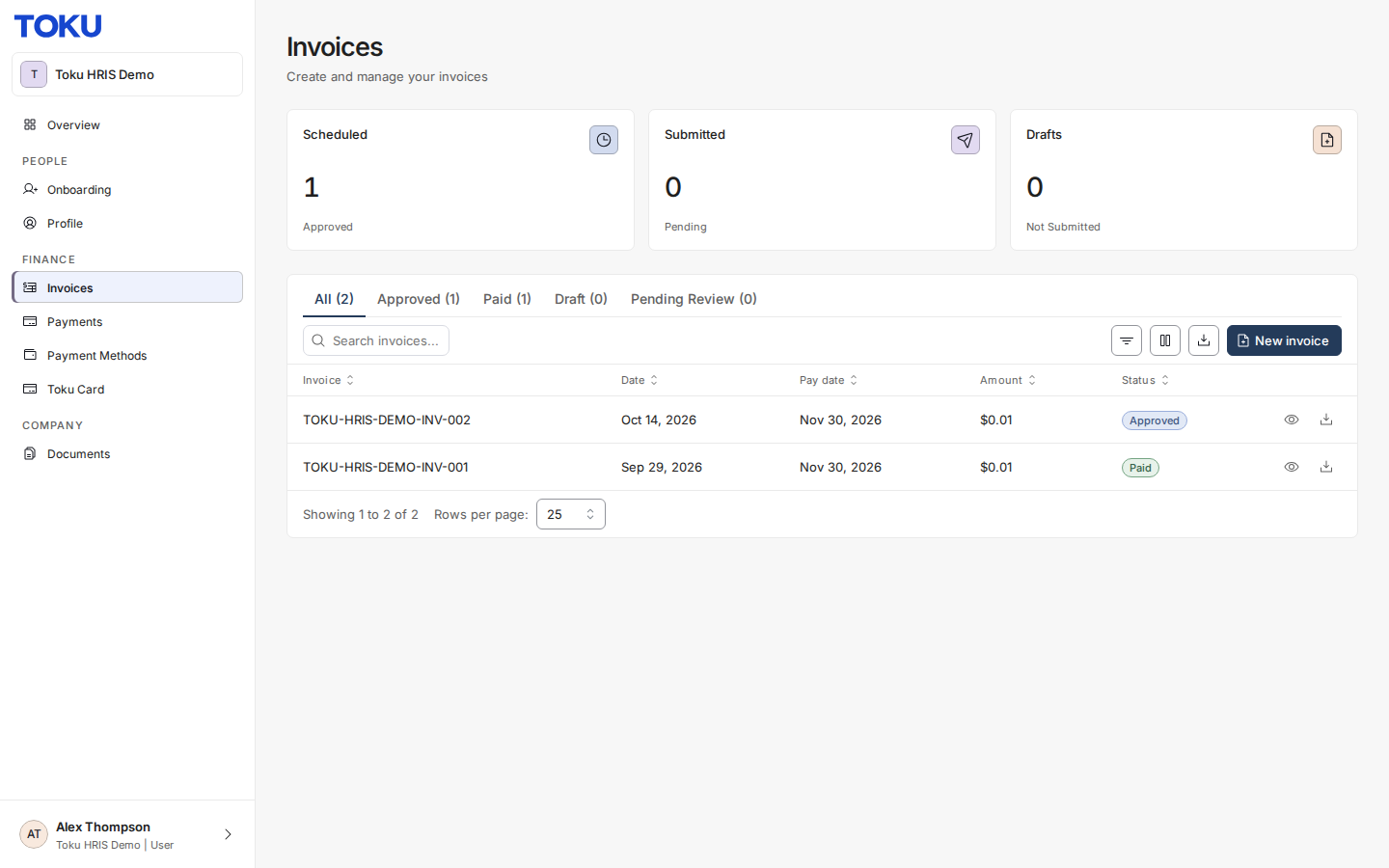
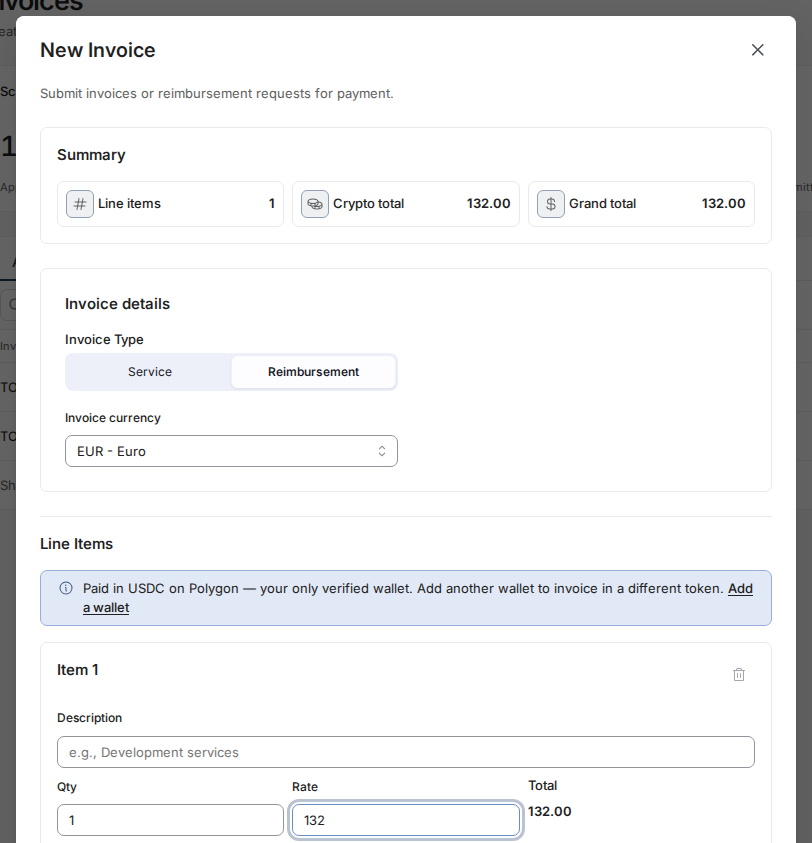
- Select the blue New invoice button in the top-right corner.
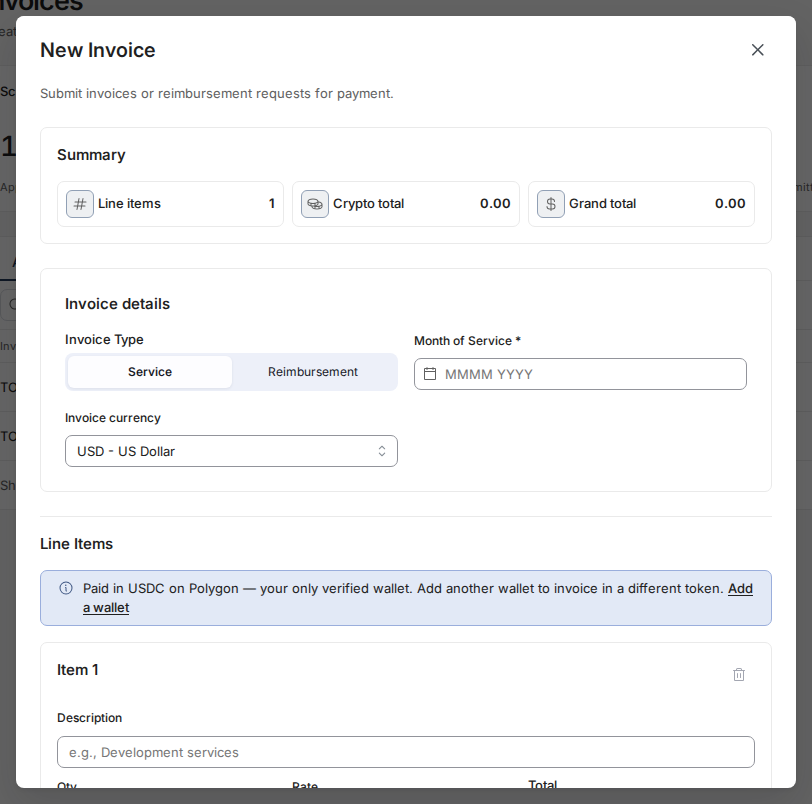
- Under Invoice Type, select Reimbursement. The Month of Service field disappears when you do - it applies only to Service invoices.
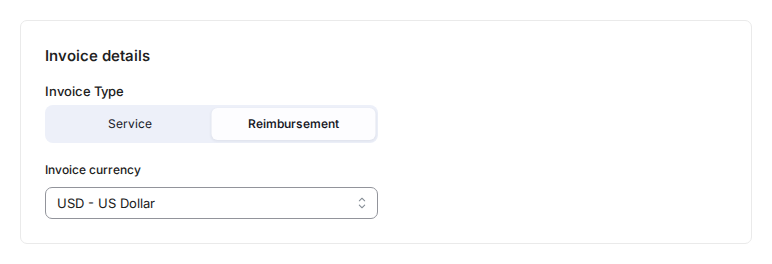
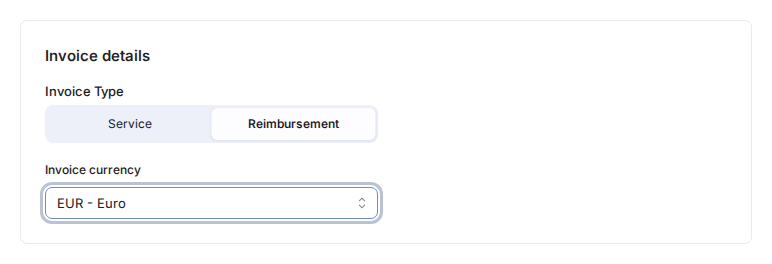
- If your organization has multiple invoice currencies turned on, an Invoice currency field appears - select the currency you paid in (for example, EUR for euros or GBP for British pounds). If you don't see this field, your organization invoices in USD.
- In the Line Items area, enter the amount you paid in the Rate field (for example, 132 for €132).
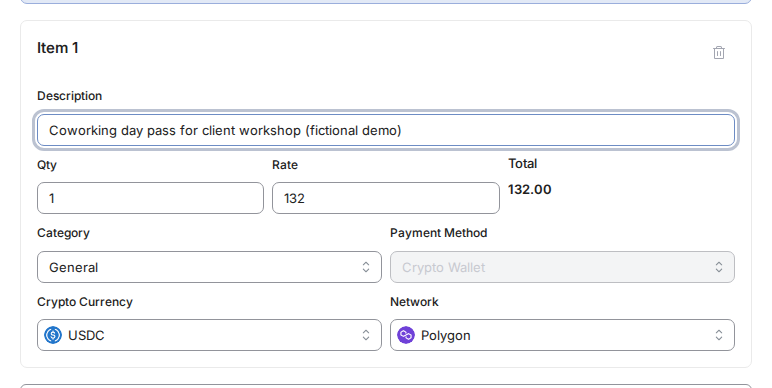
- Complete the rest of Item 1: enter a Description, leave Quantity at 1 unless you have more than one identical item, review the default Category (General) and change it if needed, and confirm the Payment Method. Description is required. If only one payment method is available, Toku selects it and locks the field.
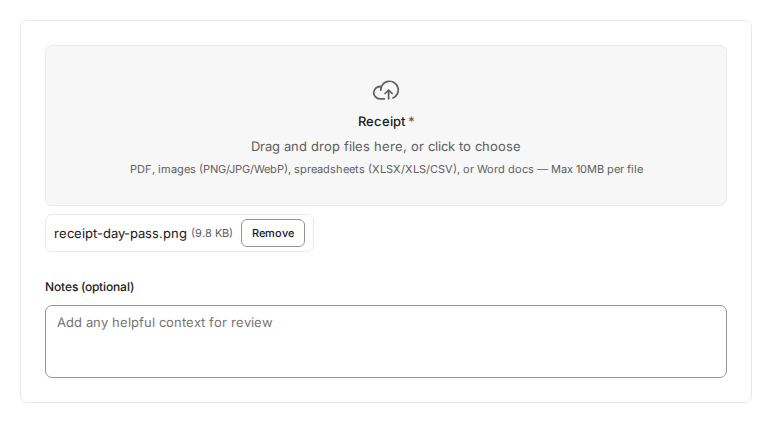
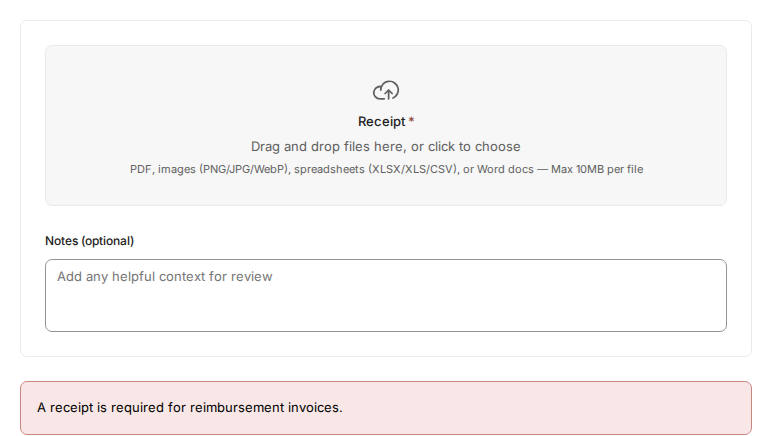
- Scroll down to the Receipt area and select the dashed upload box to add your receipt file. The box lists what it accepts: PDF, images (PNG/JPG/WebP), spreadsheets (XLSX/XLS/CSV), or Word docs - max 10 MB per file.
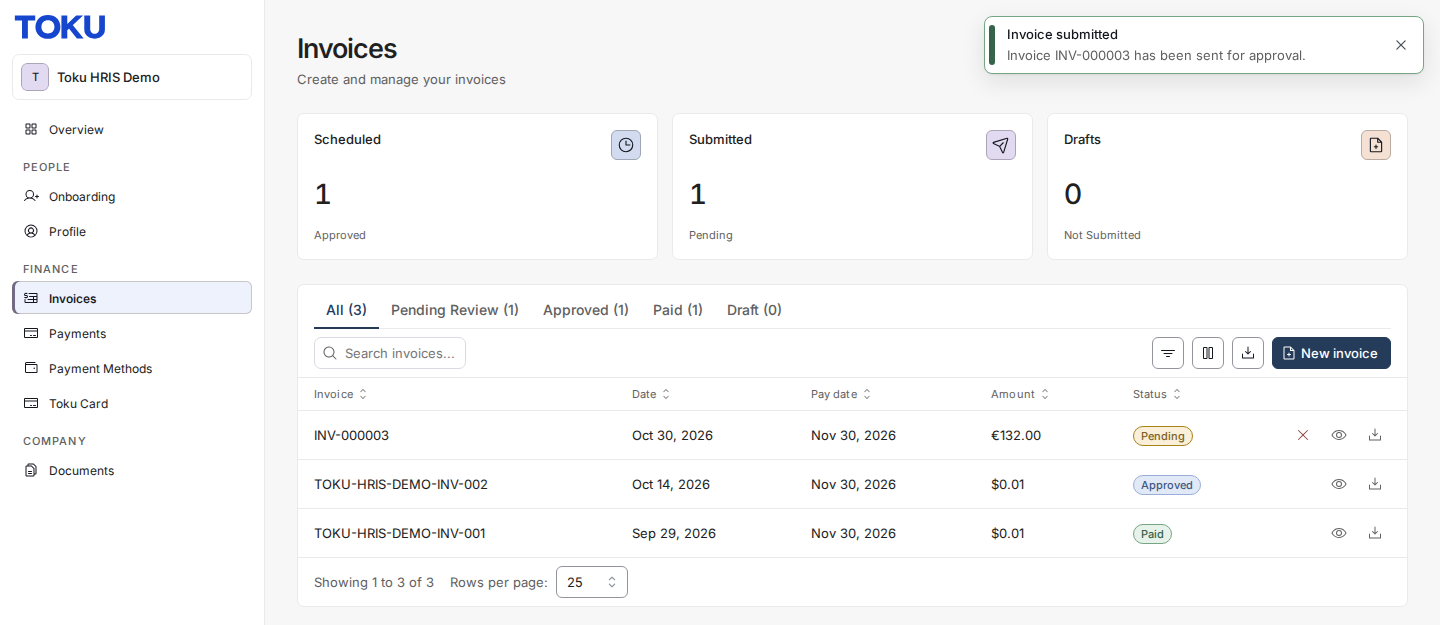
- Select the blue Submit Invoice button at the bottom-right. Toku confirms the submission. If the invoice qualifies for auto-approval, it can move directly to Approved/Scheduled; otherwise it remains Pending for company review.
Good to know
- A receipt is required for all reimbursement invoices. If you try to submit without one, you'll see a red error message - add your receipt and try again.
- If your network blocks the file service Toku stores receipts in, Toku automatically sends the receipt through its own servers instead. The upload can pause for a moment before this happens, so let it finish: the receipt then attaches as usual. If you still see Upload failed with a message that your file could not reach our file storage from this network, try again on a different network (a phone hotspot usually works, or turn off a VPN or ad blocker). If you are up against a deadline, email the receipt to your company admin: they can open your draft invoice from their Invoices page and attach it for you.
- Each line item's Payment Method is filled in for you, and the field is locked when you only have one option. Bank Transfer (Fiat) is offered only if you have bank details on file and your Payment Methods page shows a Wallets & Banks tab; contractors paid directly by Toku are wallets-only and have to use Crypto Wallet. If you have no usable payment method, submitting shows “Add bank information or an active wallet before submitting an invoice” - set one up first.
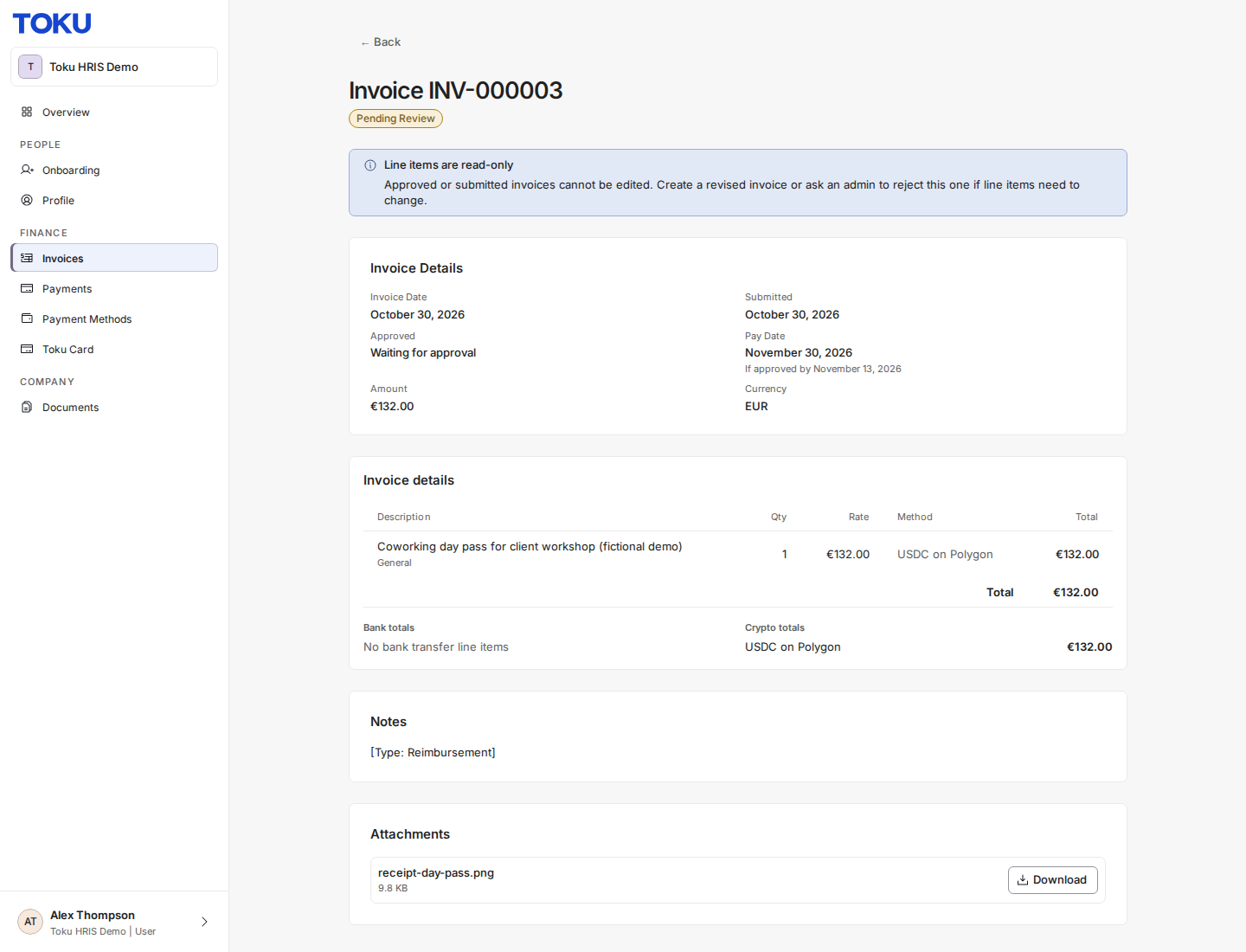
- Reimbursement invoices follow the same approval path as service invoices - there's no separate review queue. You can track status using the three counters at the top: Scheduled (approved), Submitted (pending review), and Drafts (saved but not yet submitted). Paid and Rejected invoices are available from the status tabs above the list, not as top counters. In the list itself, an invoice waiting for review carries the status Pending.
- If your company rejects the reimbursement, the status changes to Rejected. Open the invoice to read the Rejection Reason your reviewer had to give, then fix the issue and submit a new reimbursement invoice - a rejected invoice cannot be reopened or edited.
- All contractor reimbursements are now submitted and tracked as invoices - there's no separate expense report for contractors. A converted report keeps the date you originally submitted it and is totalled from its payable lines, so rejected or cancelled lines are not included. If you can't find an older expense on your Invoices page, contact us using the details below and we'll check it for you.
- A reimbursement that had not yet been paid when it was converted arrives as a new invoice awaiting review: the Invoices list shows it as Pending, and opening the invoice labels the same state Pending Review. It goes through your company's normal invoice approval and is never auto-approved, even if your organization auto-approves invoices you submit yourself. The invoice is the single record that gets reviewed and paid - your company's expense pages no longer list contractor expense reports, and if the original report still appears in an expense export it can show an old status such as Approved; the invoice's status is the one to follow.
Still stuck?
You can email [email protected] to reach our support team. Please include your email address, organization name, and a description of what happened. Screenshots and videos are always welcome to speed up the troubleshooting process. Feel free to reach out any time for further assistance.