
 4 MIN READ
 UPDATED OCT 30, 2026
📘 For employees who submit expenses on Toku. Last updated October 30, 2026.
Save a partly finished expense report as a draft, then finish and submit it whenever you're ready.
💾 Until you click Save Draft, what you type is kept only in this browser: if the page reloads, the form is restored the next time you open it (a "Draft restored" message appears), but nothing is saved to your account. On a long report, save a draft early and save again as you add expenses.
Before you start
- Open Expenses from the left-hand menu. Don't see it? Ask your administrator to enable expenses.
- A draft needs a Report Title and one filled-in line item. Report Period is optional, and categories, receipts, descriptions, and justification can all wait until you submit.
- If you keep a line item, it still needs a merchant, an amount greater than 0, and its Currency — the date defaults to today automatically. Remove any extra line you're not ready to fill in; the window always keeps at least one line, so that one must be filled in.
Save an expense report as a draft
- Click Submit Expense (top right of your Expenses list). The Expense Report window has three buttons at the bottom: Cancel, Save Draft, and Submit Report.
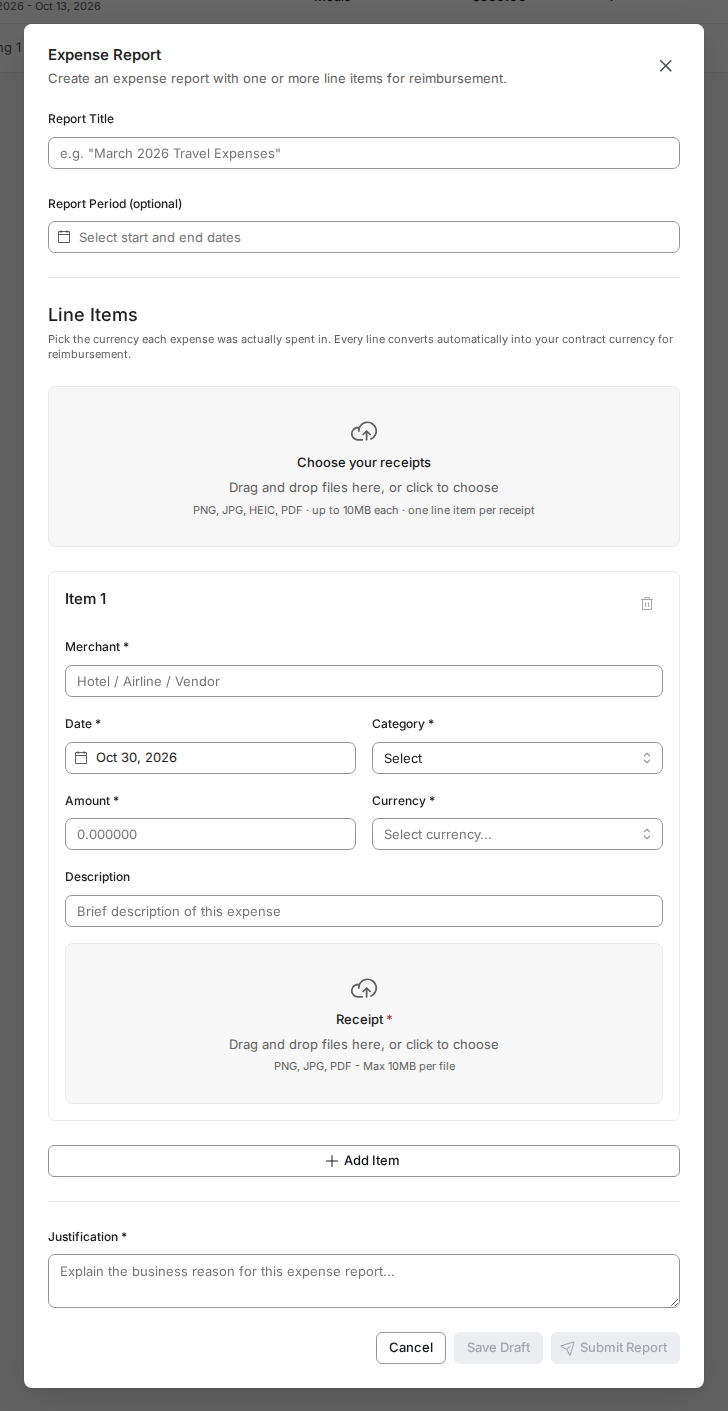
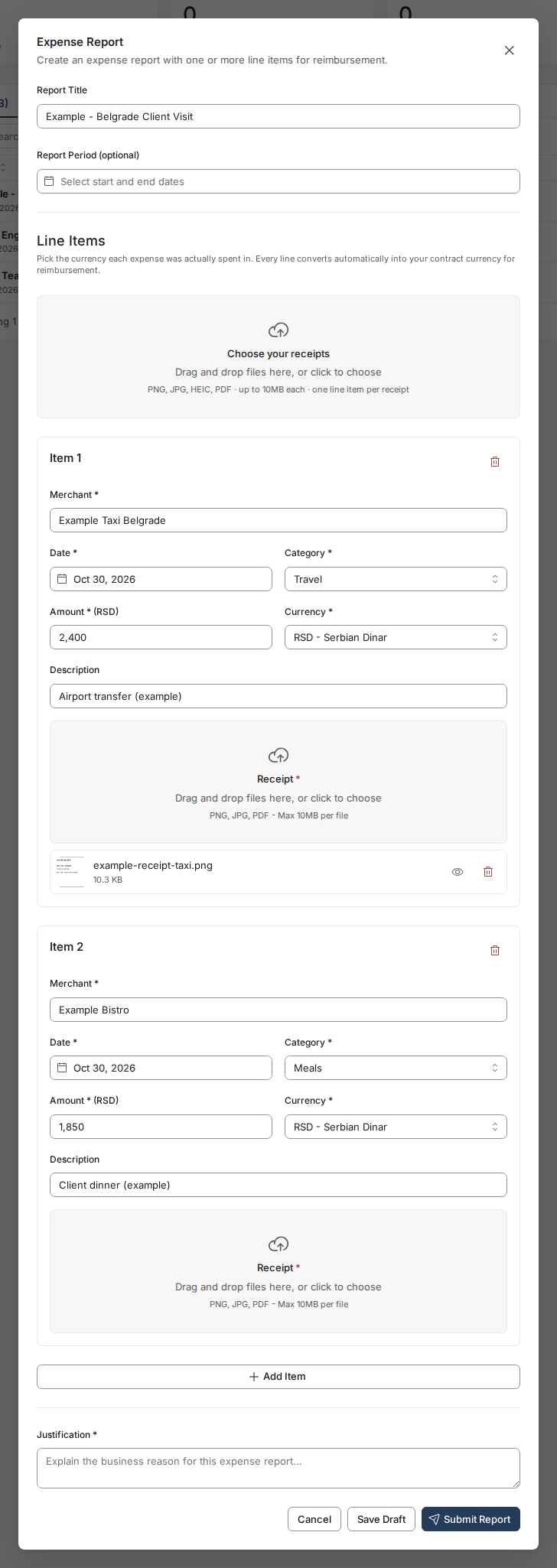
- Fill in what you have. This example has two expense lines - one missing a receipt - and no justification yet. Submit would reject it; Save Draft accepts it.
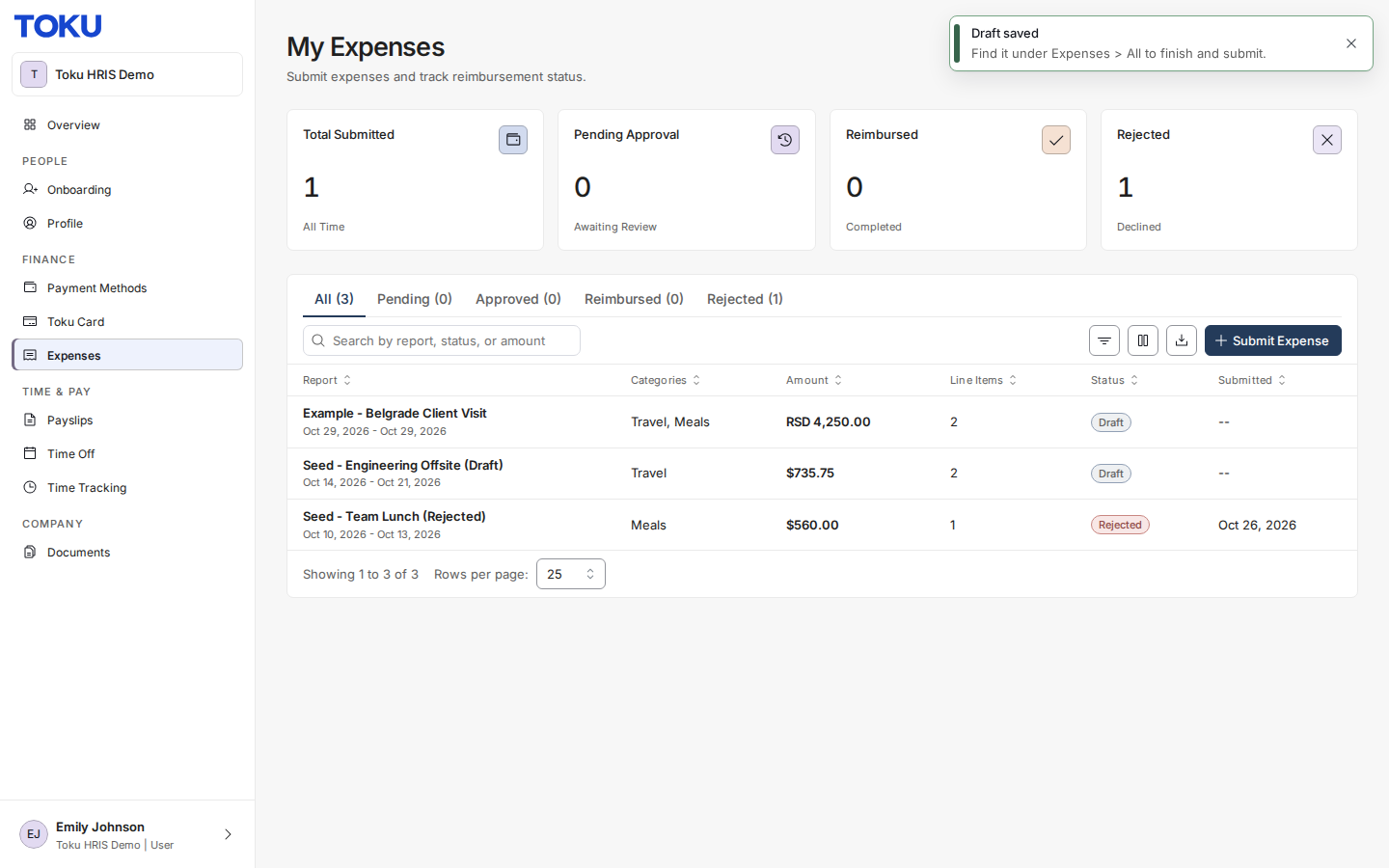
- Click Save Draft. A “Draft saved” message appears and the window closes. Nothing is sent for approval.
The full-page Expense Report form has the same Save Draft button.
Where to find your draft
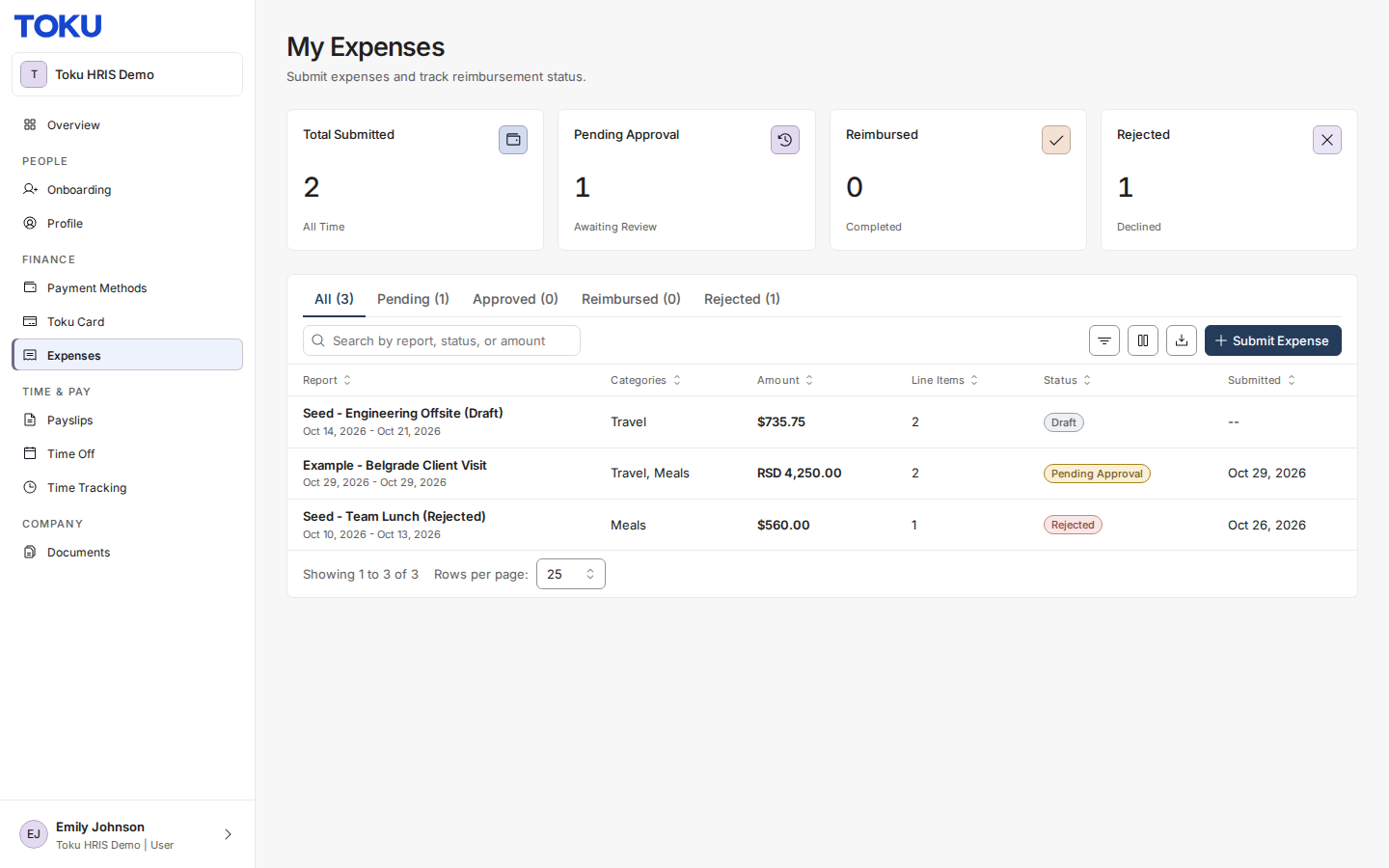
Drafts appear only in the All tab, at the top of the list, with a gray Draft badge. They don't count toward any totals, and only you can see them.
Resume and finish a draft
- Click the draft's row to reopen it. It opens the report's own Expense Report page - not the creation window - with Submit Report, the Justification box, and an Add Expense panel for anything you skipped.
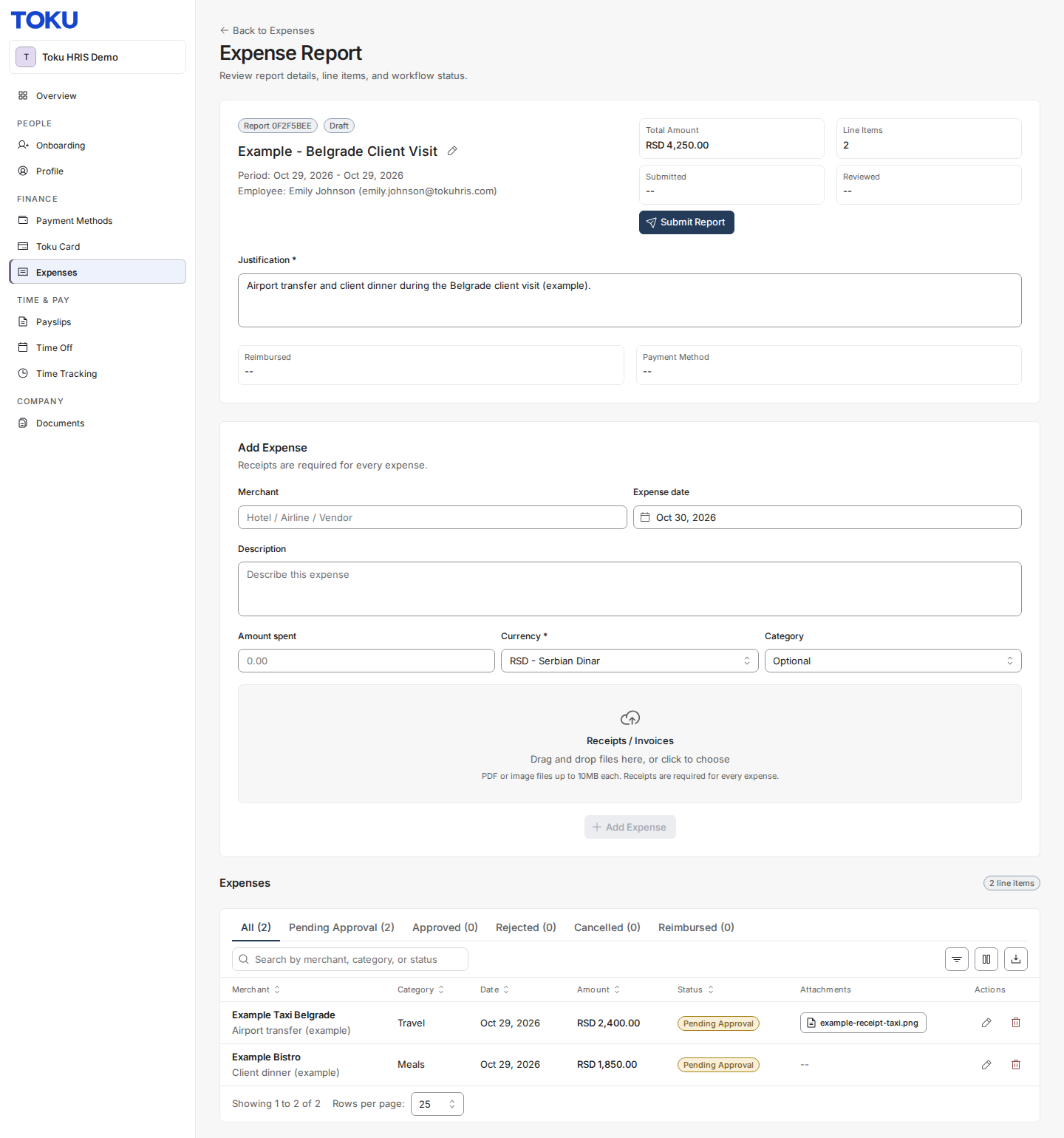
- Add what is missing. Use the Add Expense panel below the justification to add a line you skipped: it takes a merchant, date, amount, currency, category, and its receipt in one go. A line that is already on the report only offers Edit Amount and Delete, so if one is missing its receipt, delete that line and add it again with the receipt attached. If a justification is required, type it in the Justification box and click Save Justification.
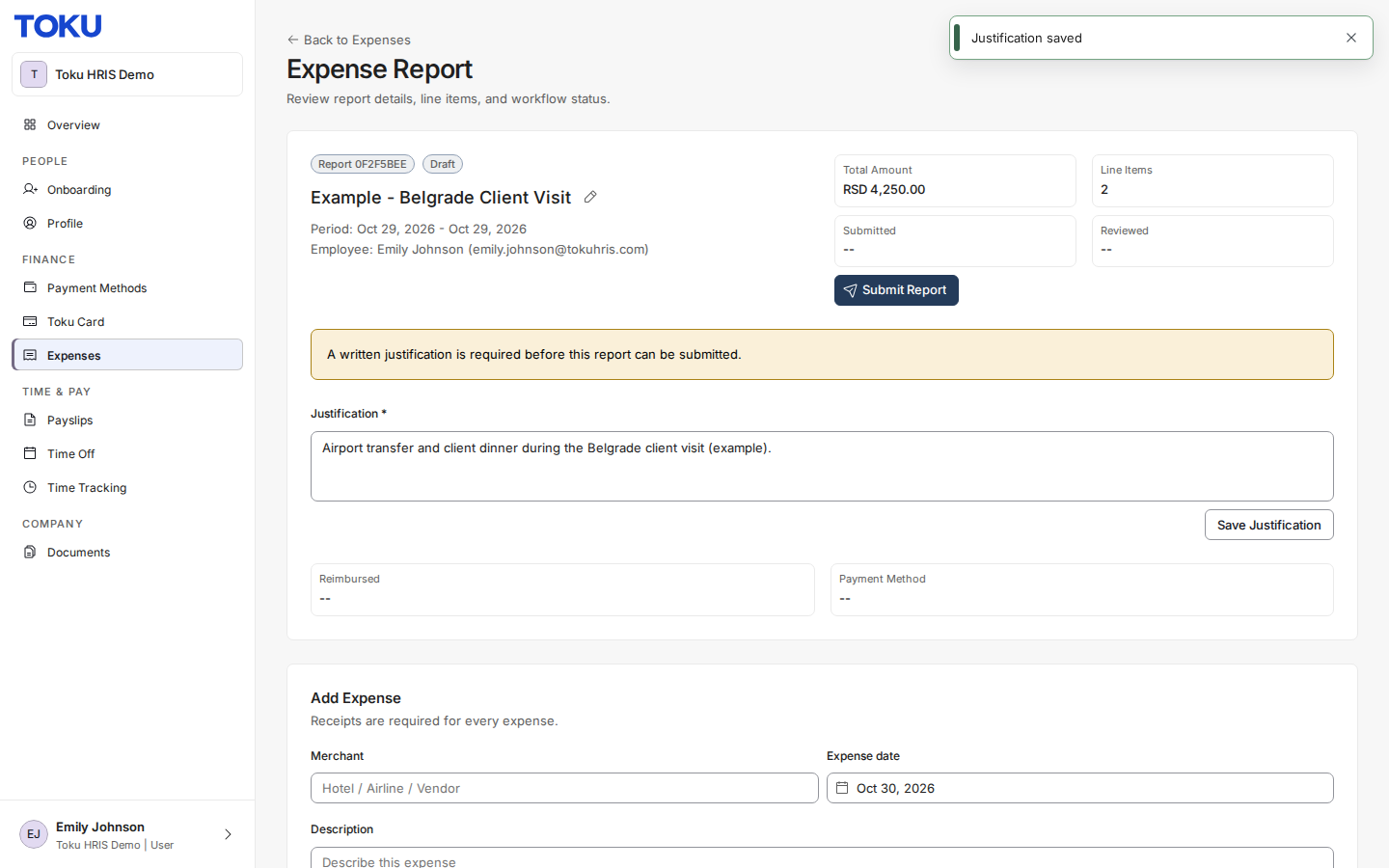
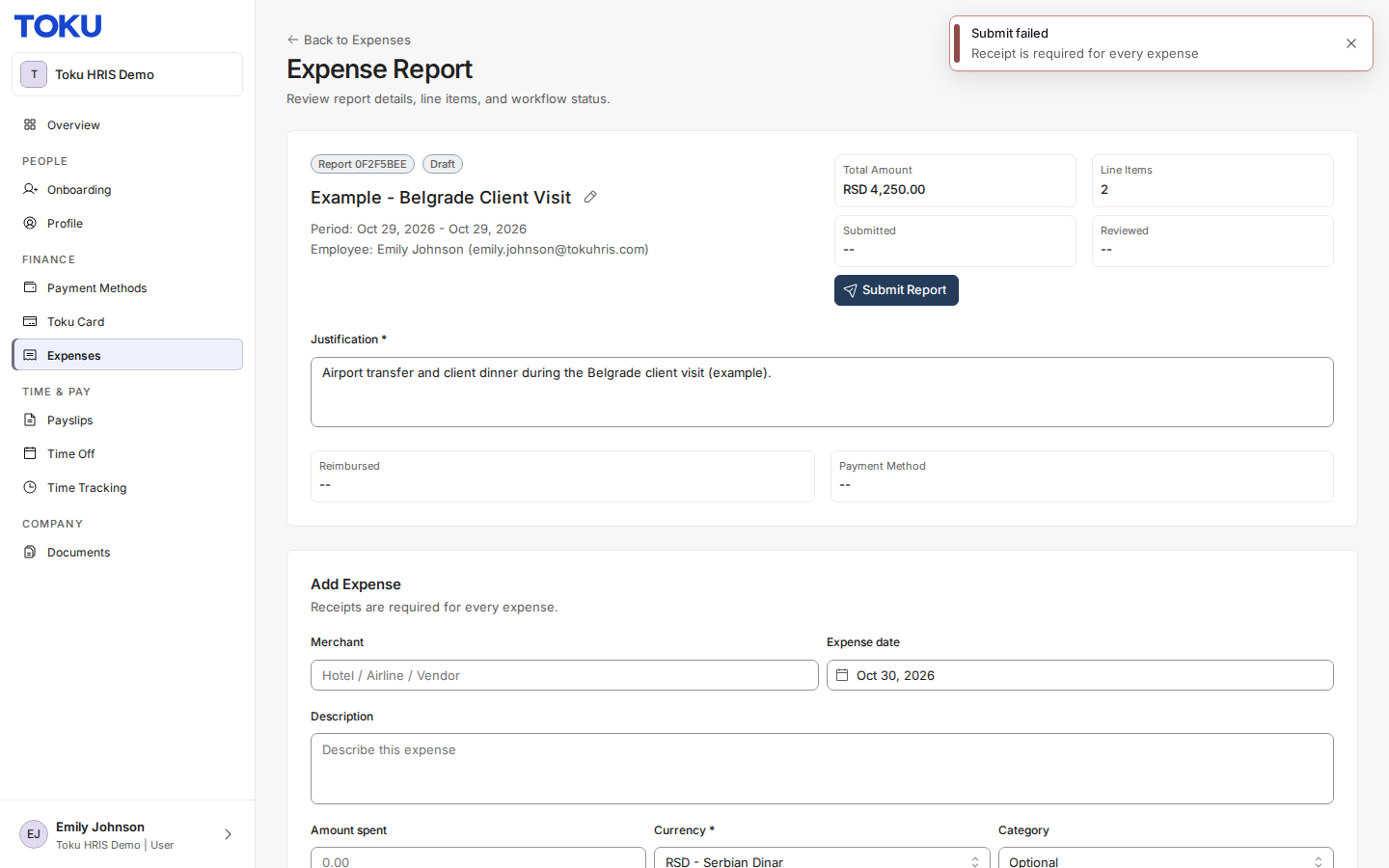
- Click Submit Report. The usual checks run - every line needs a receipt, plus a justification if required. Anything missing is named on screen, and the report stays a draft.
- Once everything passes, the report is submitted normally: it leaves Draft, shows its new status, and your totals update.
Good to know
- Saving a draft never skips the rules - every requirement still applies when you submit.
- Drafts stay at the top of your All tab until submitted.
- Drafts can't be deleted yet. To reuse an unwanted draft, rename it for your next report.
⚠️ For administrators: Save Draft in the Submit-for-employee window saves the draft to the employee. It leaves your view, and only the employee can finish or submit it.
Still stuck?
You can email [email protected] to reach our support team. Please include your email address, organization name, and a description of what happened. Screenshots and videos are always welcome to speed up the troubleshooting process. Feel free to reach out any time for further assistance.