
 11 MIN READ
 UPDATED OCT 30, 2026
⚠️ Contractor invoice and payment deadlines: late action means late payment
- Contractors: submit invoices by the 19th of each month. A saved draft is not a submitted invoice.
- Admins: approve invoices by the 21st of each month. Submission alone does not authorize payment.
- Funding: Toku must receive cleared funds 4 - 5 business days before payout. Initiating a transfer or sending proof of payment does not meet the deadline.
- Standard monthly payout: the last day of the month, provided submission, approval, and funding deadlines are met. Late submission, approval, or funding will delay payment. Every day of delay pushes payment back by at least one day. A missed payment cycle can cause a longer delay; the invoice due date is not a guarantee of payment.
Automation does not remove these deadlines. Earlier published holiday deadlines take precedence; see Toku: 2026 End-of-Year Payroll & Payment Guide.
📘 For employees, and for the contractor types Toku pays by bank transfer - client-managed, agent-of-record, and prop traders. Other contractor types are paid by wallet - see "How to add your payout wallet." Last updated October 30, 2026.
Save your bank account details in Toku so your payouts arrive in the correct account.
Before you start
- You need a Toku account for the Employment platform from your organization.
- Have your bank details ready: account holder name, account number, and local bank codes (routing number, SWIFT code, or equivalent for your country).
- If your country requires proof (like a bank book photo in Japan), have it ready.
Sign in to your account
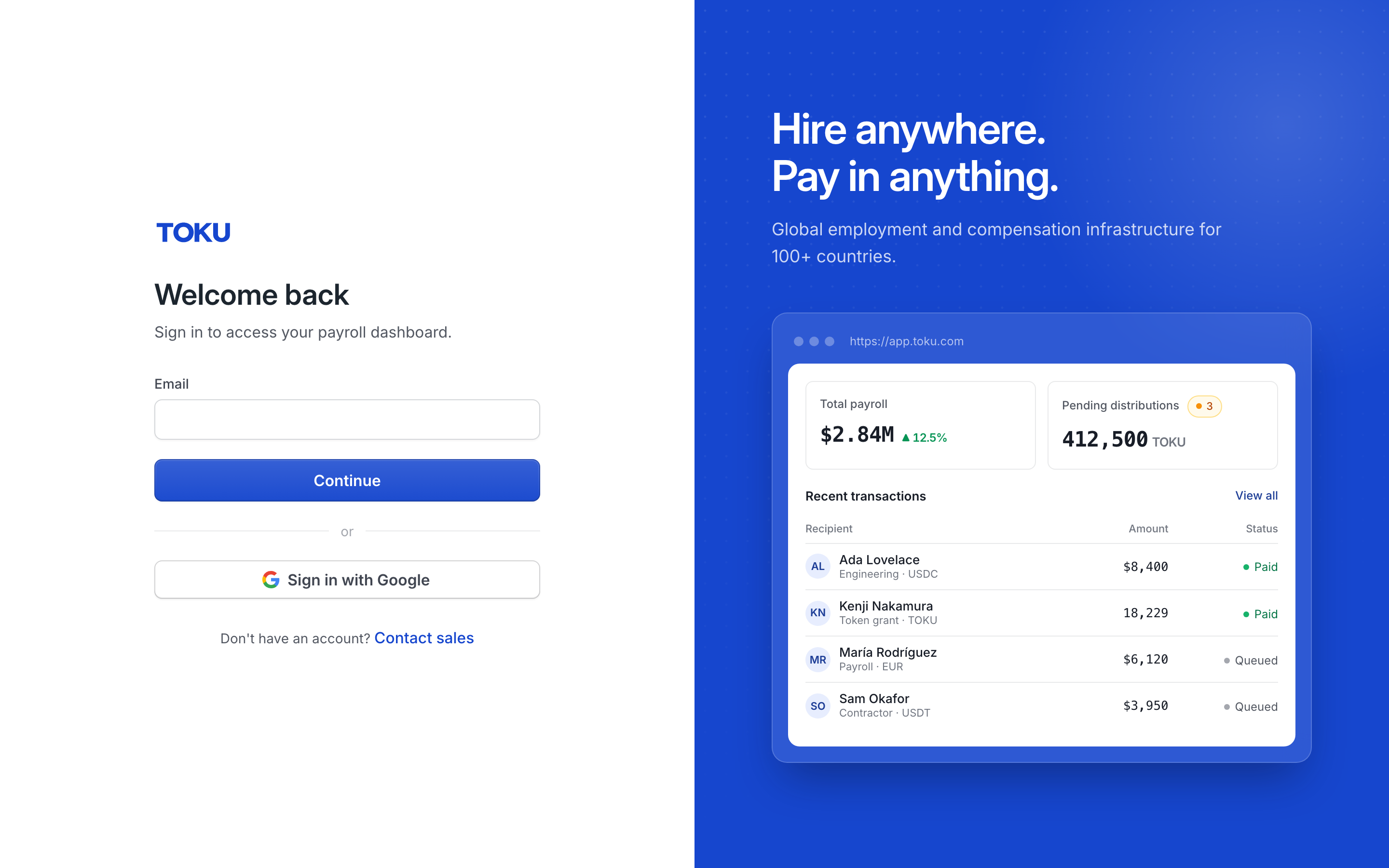
- Open app.toku.com. You see Welcome back and a single Email box - there are no product tabs to choose any more.
- Enter your email and select Continue, then enter your password and select Sign in.
Access the banking form during onboarding
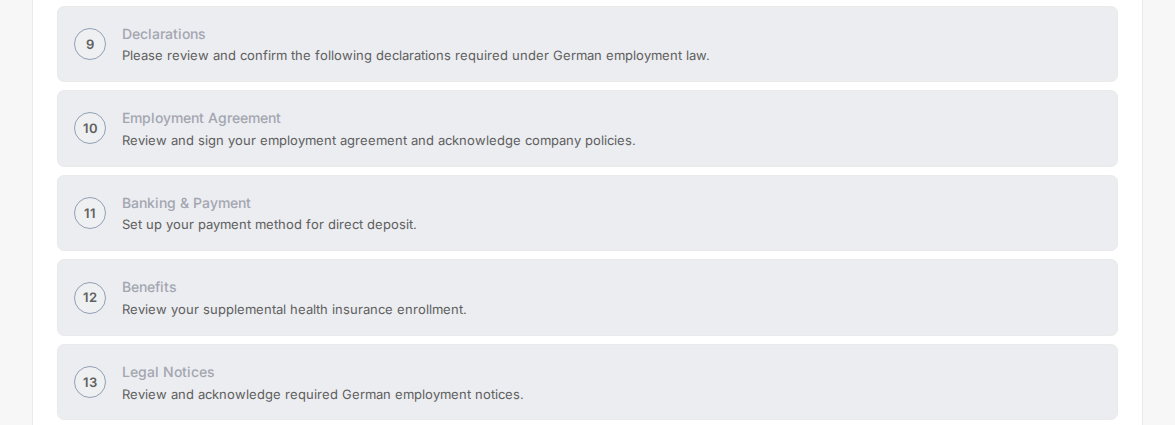
- If you're completing account setup, select Onboarding in the left menu.
- Your setup checklist shows all the steps required for your country. Find the Banking & Payment step and select Continue once it is your next incomplete step.
Or access from Payment Methods after onboarding
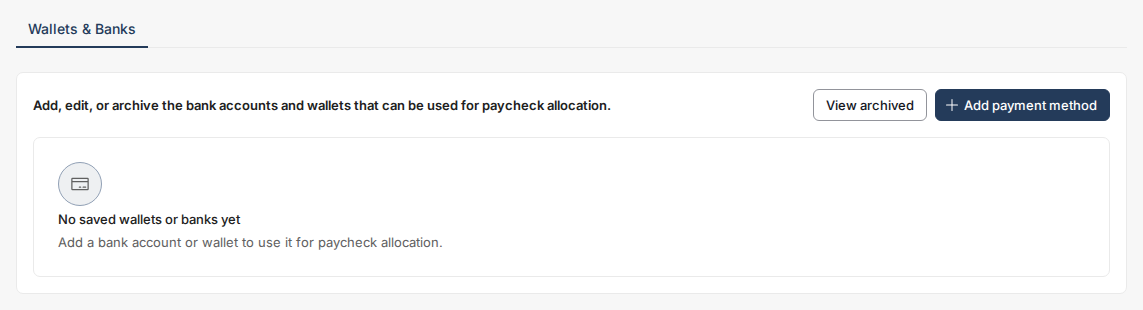
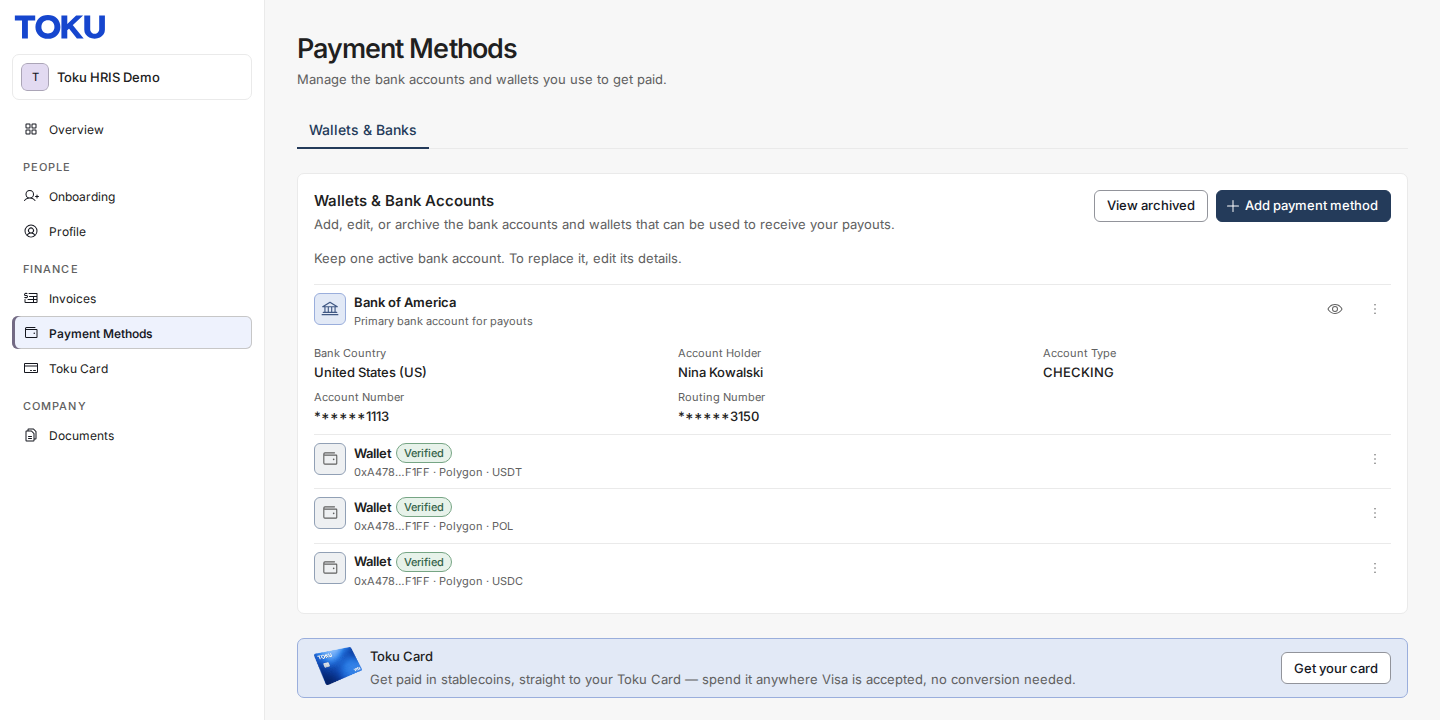
- If you've finished onboarding, select Payment Methods in the left menu. The page opens on the Wallets & Banks tab. As an employee you also get a Paycheck Allocation tab once you have a wallet saved; as a contractor, Wallets & Banks is your only tab.
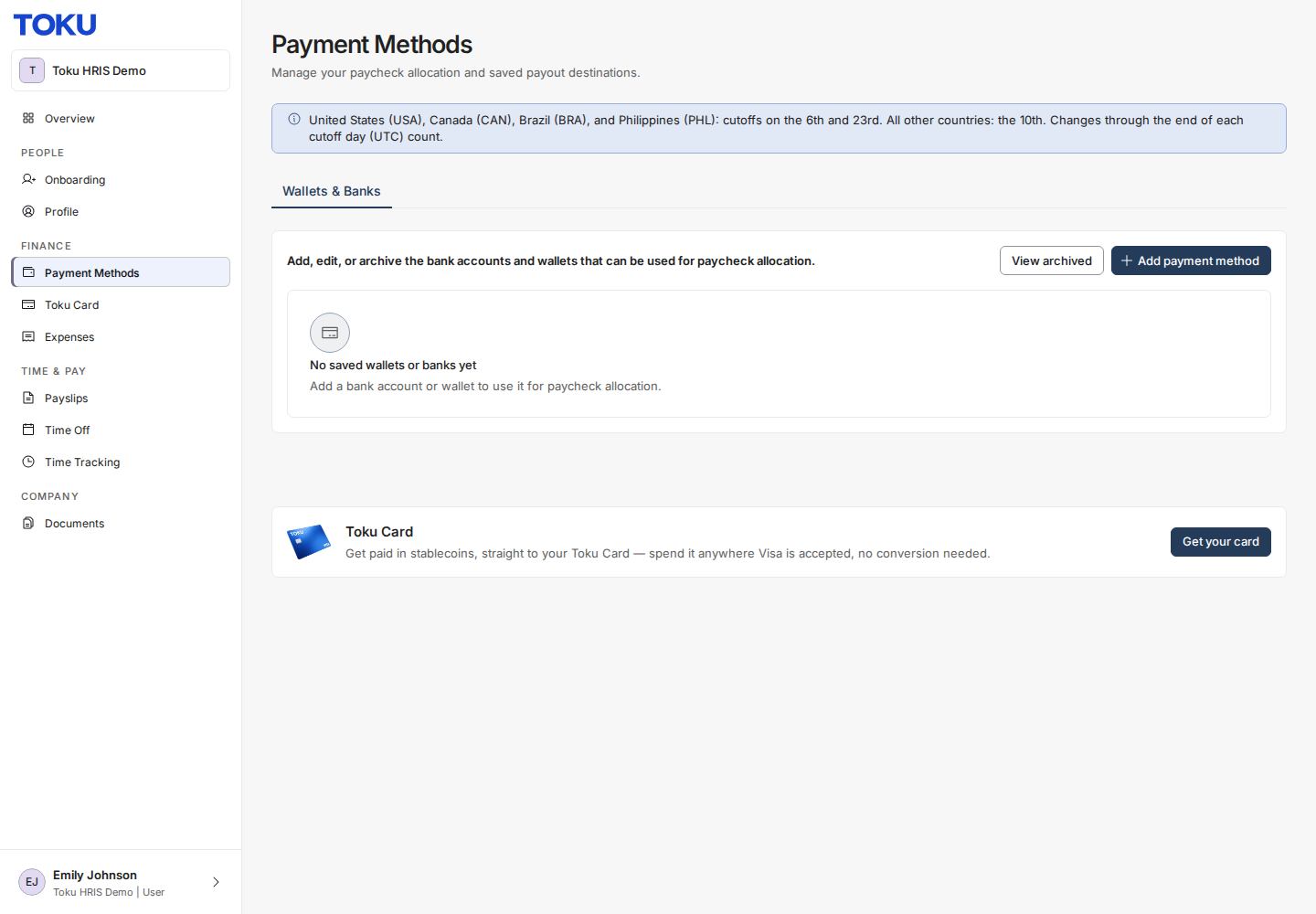
- On the Wallets & Banks tab, select Add payment method.
- A picker opens: Add checking or savings account, Create a New Wallet, or Add External Wallet. Select Add checking or savings account, then select Next.
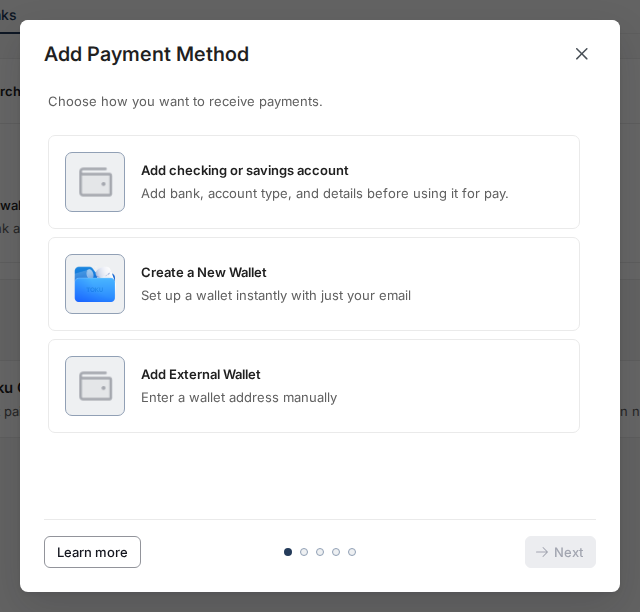
If a bank account is already on file, the picker shows only the wallet options. Toku keeps one active bank account per employment or contract, so you change banks by editing the account you have (see Edit your saved bank account below), not by adding a second one.
Fill in your bank details
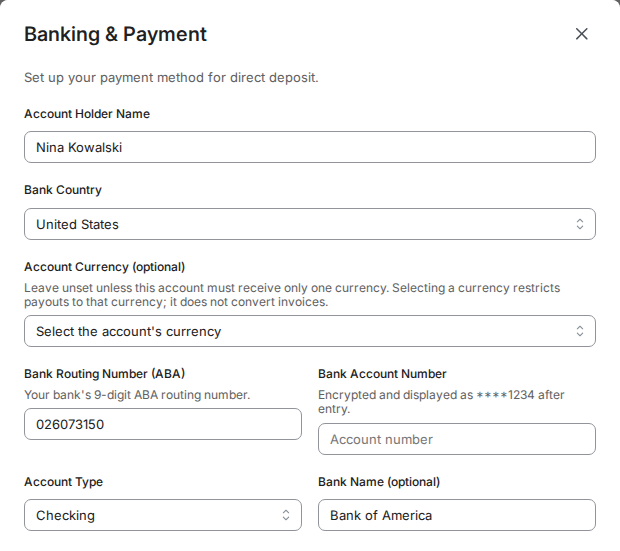
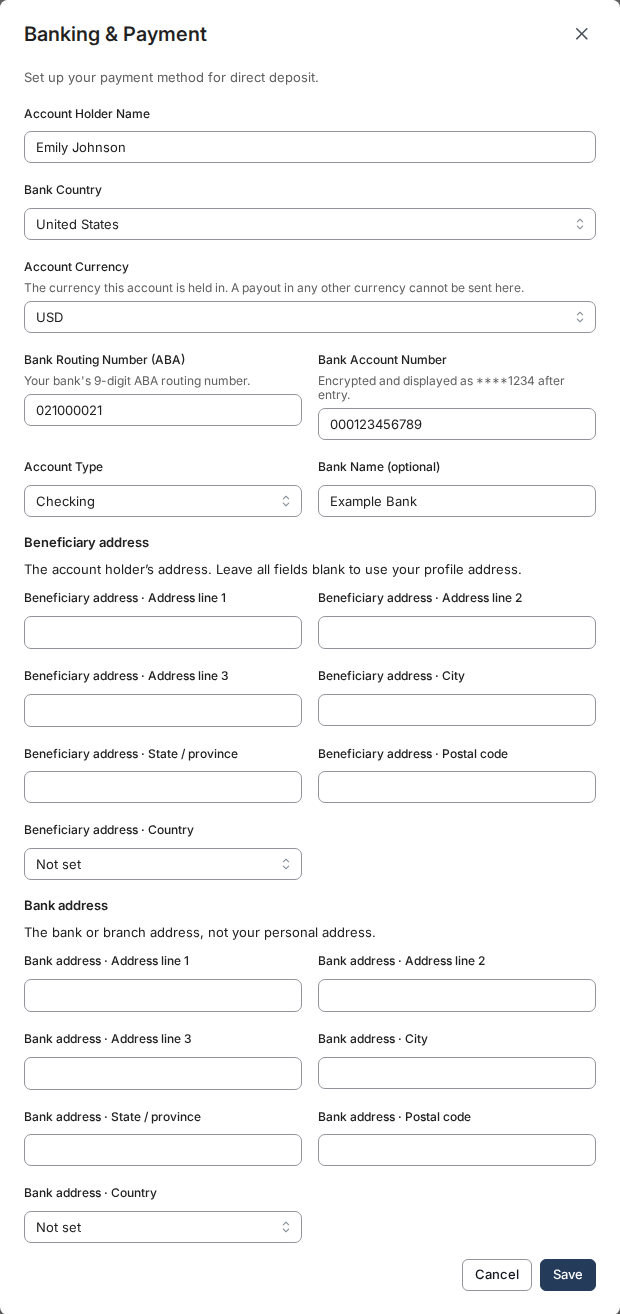
- The bank details form opens. It is always titled Banking & Payment, with the subtitle "Set up your payment method for direct deposit." - the title is the same whether this is your first account or an edit of one already on file. It asks for Account Holder Name, a Bank Country, an Account Currency, and then the identifiers that country uses: for a US account those are Bank Routing Number (ABA), Bank Account Number, Account Type and Bank Name (optional). Other countries swap in their own codes. Below them are Beneficiary address and Bank address sections; leave the beneficiary address blank to use your profile address.
- Enter each value exactly as your bank records it. Bank Routing Number (ABA) takes your bank's 9-digit ABA routing number. Red error messages appear if your input is wrong.
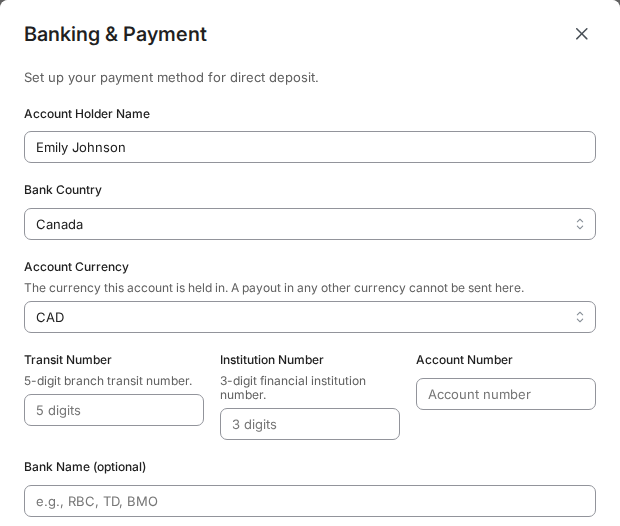
- Some countries use a different code instead of a routing number - for example Transit Number and Institution Number for Canada, a sort code, BSB, or IFSC code for other countries, or Account Number and BIC/SWIFT Code for Vietnam. If you reopen this step later, Toku decrypts what it holds and fills the form back in, so those codes come back in full - and so do your Account Number, IBAN and BIC/SWIFT Code. A masked value shows asterisks and its last four characters, and has to be retyped in full to change it.
- Toku still checks the format of these codes. For example, a Canadian transit number must be exactly 5 digits.
Match your account holder name exactly
- In Account Holder Name, type your name letter-for-letter as it appears on your bank statement. Banks reject transfers when this name doesn't match their records.
- Common mistakes: using nicknames ("Bob" instead of "Robert"), missing middle names or accents, or entering someone else's account name.
Upload proof documents if your country requires them
- Some countries require proof of your account. Japan requires a Bank Book or Statement Photo; India offers an optional Cancelled Cheque Photo.
- Accepted formats are PDF, PNG, or JPEG, up to 10 MB each. The upload field appears at the bottom of the Banking & Payment form during onboarding; the Payment Methods edit form does not include this upload. If the document is required, upload it in the onboarding step rather than sending it outside the form.
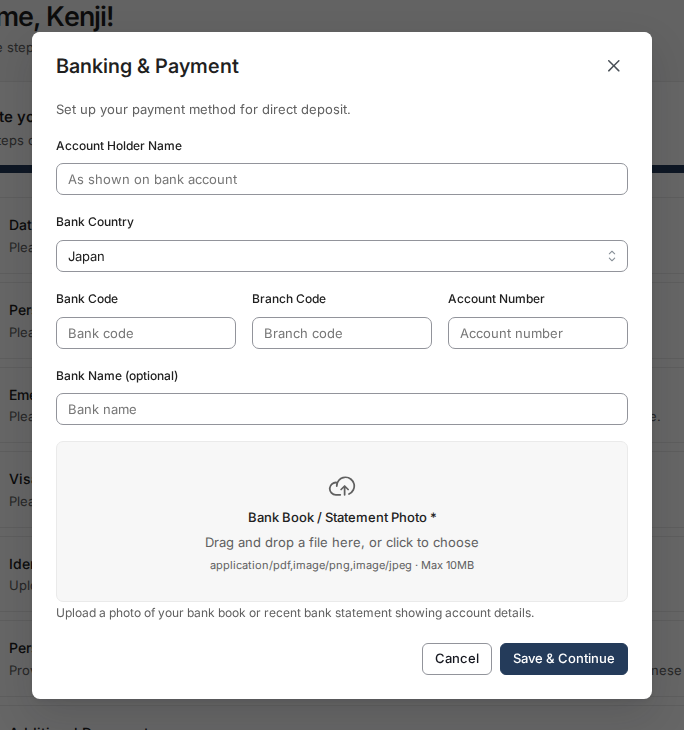
Save your details
- Select Save & Continue (during onboarding) or Save (from Payment Methods).
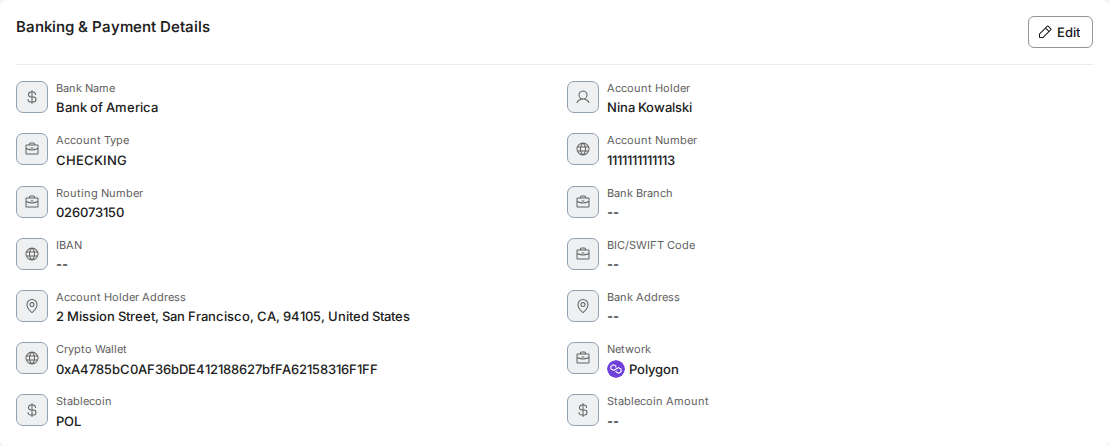
Review saved bank and wallet details
- Select Payment Methods in the left menu, then the Wallets & Banks tab - or select Profile and scroll to Banking & Payment Details. Profile shows your saved account number, IBAN and BIC/SWIFT Code in full; on Payment Methods they are masked until you select the eye icon on the account card.
If you have more than one crypto wallet
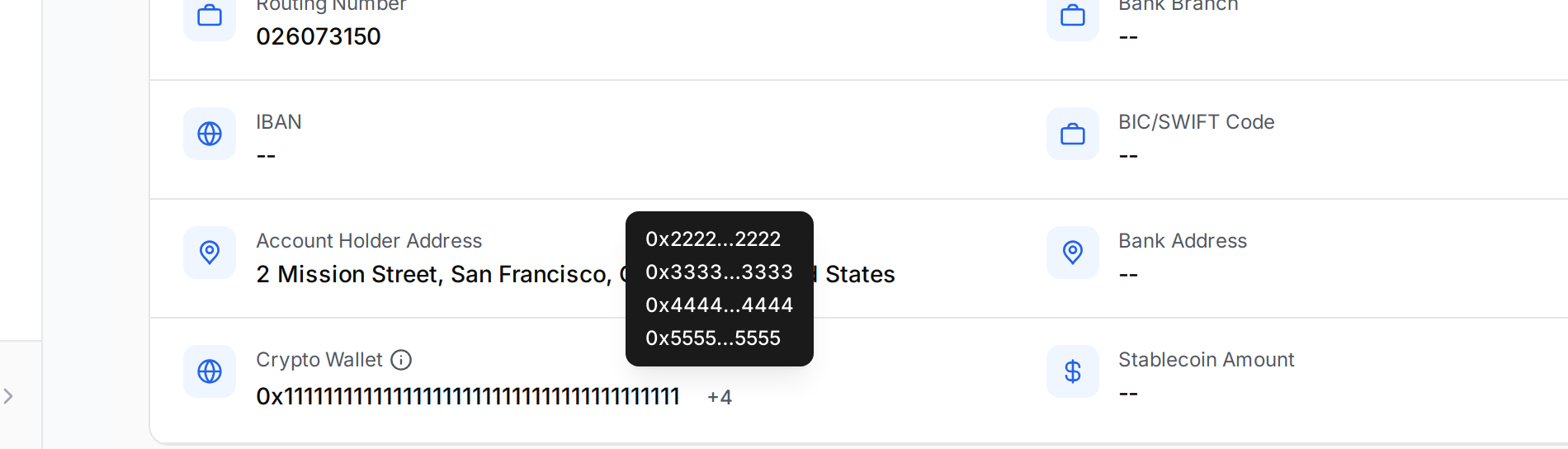
Banking & Payment Details shows one wallet address in full - the oldest verified one - and counts the rest beside it. If you have several wallets saved on the Payment Methods page, this card is a summary of them, not the whole list.
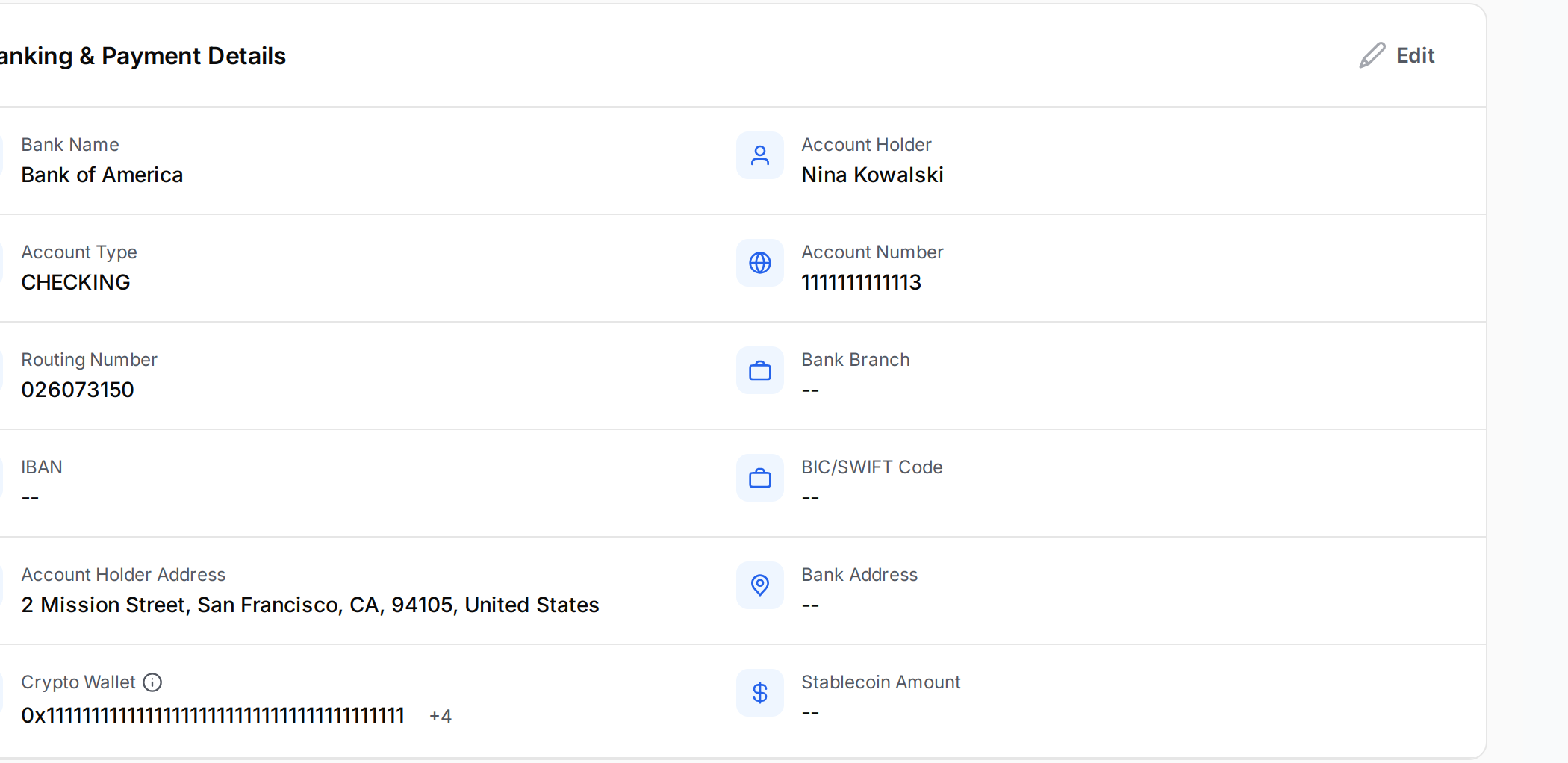
- The small +4 beside the address is how many other verified wallets you have. Hover it to see them, shortened to their first and last characters.
- Select the ⓘ beside Crypto Wallet to jump to Payment Methods, where each wallet is listed with its own network and stablecoin.
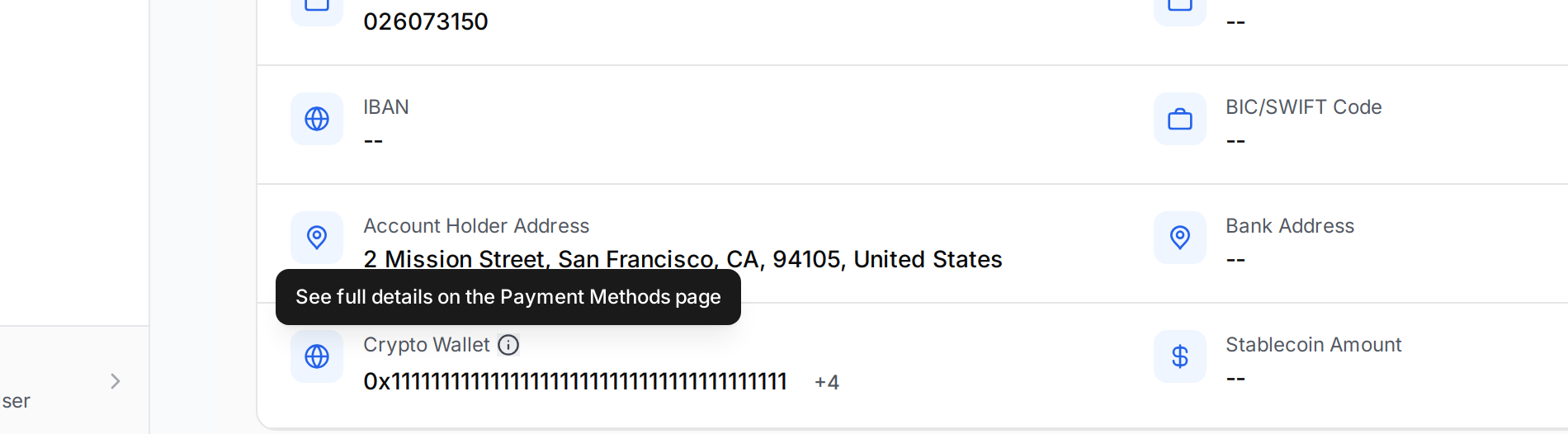
💡 Network and Stablecoin disappear from this card once you have more than one wallet, and that is deliberate - nothing has been deleted. Those two rows can only describe one wallet, so showing them beside a list of several would say something untrue about the others. Stablecoin Amount stays, because it applies to you rather than to any one wallet. With a single wallet the card is unchanged and still shows both.
- Only verified, current wallets are counted. A wallet still pending verification does not appear here - see Verify Your Wallet.
- The hover list stops at four. If you have more than five wallets in total, the badge still counts four and Payment Methods remains the complete list.
- An administrator looking at your profile sees the same address and badge, but no ⓘ link - it would take them to their own payment methods, not yours.
Edit your saved bank account
- Select the three-dot menu on the account card.
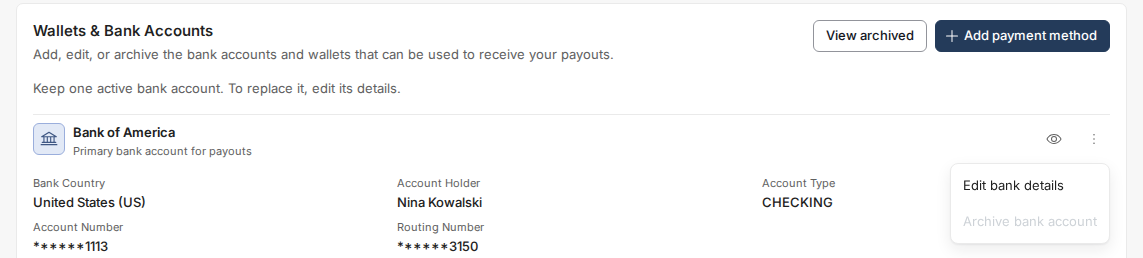
- The same Banking & Payment window opens with your saved details filled in, except the account number. That box is blank on purpose: Toku stores the number encrypted and only saves it again when you type a new one. To move your payouts to a different account, type the new account number in full, change the Bank Country and the other identifiers if the new account uses different ones, then select Save. Leave the account number blank to keep the one on file. An account in a different country from your country of record is sent to an admin to approve, and the confirmation message says which happened.
- If a modern contractor invoice was already approved, its bank destination stays pinned to the account version used at approval; editing the bank record does not redirect that approved payout leg.
Manage the full bank record from your Profile page
Your Profile page shows the full bank record, including Bank Branch, Account Holder Address and Bank Address, but you change it in the Banking & Payment window on Payment Methods, which also has Beneficiary address and Bank address sections. IBAN and BIC/SWIFT Code work differently - the form does not offer them on demand. It shows the bank identifier your bank country actually uses: Routing Number for the US, Sort Code for the UK, Transit Number and Institution Number for Canada, BSB for Australia, IFSC Code for India, CLABE for Mexico, and Bank Code with Branch Code for Japan and much of Asia; Brazil adds CPF Number and PIX Key to its Bank Code and Branch Code. IBAN and BIC/SWIFT Code appear only for countries Toku has no local rail for; Kenya, Nigeria and South Africa also show BIC/SWIFT Code alongside Bank Code. Vietnam asks for your Account Number and BIC/SWIFT Code and has no IBAN field, because Vietnamese banks do not issue IBANs. A field that already holds a saved value stays editable whatever your bank country, so an account carrying an IBAN keeps its IBAN field. If your bank asks for an IBAN and no IBAN field appears, do not enter it in another field or submit guessed details; leave the bank record unchanged until the required field is available for that Bank Country.
- Select Profile in the left menu, scroll to Banking & Payment Details, and select Edit. This takes you to Payment Methods; open the account's three-dot menu and select Edit bank details.
- Fill in only the fields your bank needs, then select Save.
Good to know
- Your name must match your bank account records exactly.
- For other payout types, confirm the updated account before relying on it; this guide does not promise that every payment already in progress is pinned in the same way.
- Client-managed and agent-of-record contractors, and prop traders, can add and manage a bank account here, through the same Wallets & Banks tab and steps as an employee. Their Payment Methods page shows that single tab - there is no Paycheck Allocation tab for a contractor. Other contractor types are paid by wallet only - see "How to add your payout wallet."
Still stuck?
If the form still blocks you, do not submit guessed details or put a bank value in a different field. Leave the current bank record unchanged and retry only after the required field or validation is available.